


Motorola stock firmware installation guide
📄 On this page, we have shared the download links and a complete
installation guide to flash the
🛠️ If you want to restore your device back to its factory firmware,
📱 FirmwareFile is a reliable and user-friendly platform for mobile device firmware
🛠️ Facing software glitches, boot loops, IMEI issues, or a completely
dead device? Our extensive collection of
stock firmware (ROMs)
⚙️ Steps to Install Motorola Moto G6 XT1925-12 Stock Firmware
Motorola stock firmware manually required
Now, if you are ready to flash the stock firmware manually on your
So, without wasting any more time, let’s begin the installation process.
📌 Pre-Requirements:
Motorola Moto E5 Plus (XT1924-5) stock ROM is supported
- 📱 This ROM is supported only for the
Motorola Moto E5 Plus (XT1924-5) variant. - 🔋 Make sure your device is charged at least 50% or higher.
- 💻 You will need a PC or Laptop along with a USB Data Cable.
- 💾 We strongly recommend taking a full data backup before proceeding.
- 🧩 Install Motorola USB Drivers and the Rescue & Smart Assistant Tool on your PC.
- 🛠️ Download and install the ADB & Fastboot Tools to flash the firmware.
🔧 Install or Flash .xml Firmware (ROM) using RSD Lite Tool
Motorola Falsh tool "RSD Lite Tool"
📌 Requirements
- 💻 Download and install the Official Motorola USB Driver on your computer (skip if already installed).
- 🛠️ Download and extract the Motorola RSD Lite Tool.
📂 Install RSD Lite Tool
After extracting the RSD Lite Tool package, you will see several files. Open the RSD Lite Tool Setup and install it on your computer.
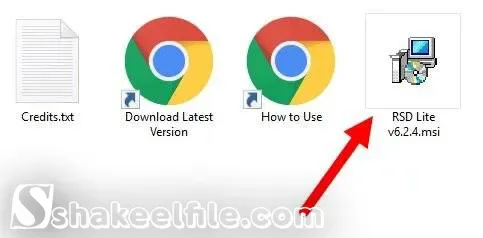
🚀 Launch RSD Lite Tool
Once the installation is completed, launch RSD Lite Tool. You will see the main interface as shown below:
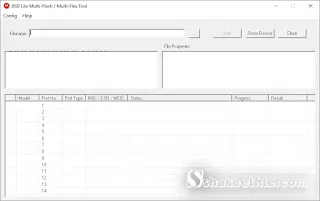
📁 Load Firmware
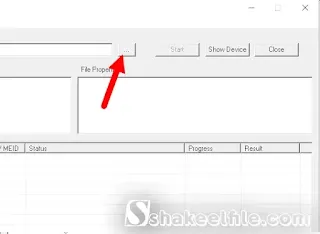
Click on the Browse button and locate the downloaded Motorola Stock Firmware (.xml) file.
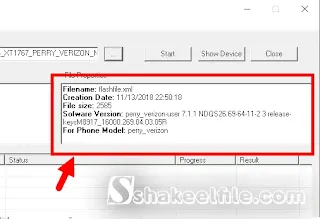
Once loaded, complete firmware details will appear on the right panel.
📱 Connect Device (Fastboot Mode)
- 🔌 Power off your Motorola device.
- 🔽 Press and hold Volume Down + Power to enter Fastboot Mode.
- 💻 Connect the device to the computer.
The connected device will appear in the device list:
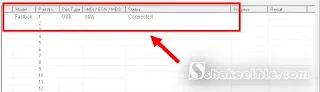
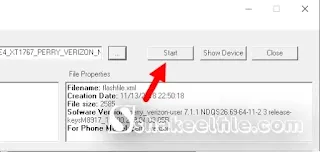
⚡ Start Flashing
Click on the Start button to begin the flashing process.
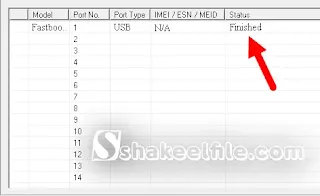
✅ Flashing Complete
- ⏳ Process may take 5–10 minutes.
- ✔️ Finished message will appear once completed.
🔁 Final Step
Disconnect your Motorola device and restart it. 🎉
Congratulations! You have successfully flashed stock firmware using the RSD Lite Tool.
If you face any issues while flashing, leave a comment with your problem — we’ll help you fix it.
🔧 Flash Motorola Phone Using InfinityBox AST (Chinese Miracle II)
InfinityBox AST
Flashing a Motorola phone using the CM2 AST (Chinese Miracle II Android Service Tool) module involves advanced technical steps and requires specific software and firmware files. This method is commonly used for tasks such as fixing boot loops, FRP (Factory Reset Protection) bypass, and other low-level repairs.
⚠️ Important Considerations
- 📂 Data Loss: Flashing will erase all data on the device. Always back up important data before proceeding.
- 🛡️ Warranty: This process may void the manufacturer’s warranty.
- 🚫 Risks: Incorrect flashing may permanently brick your device. Proceed carefully.
- ✅ Alternative: For normal repairs, Motorola officially recommends the Rescue and Smart Assistant Tool, which is safer and supported.
📌 General Steps for Flashing with CM2 AST
The exact procedure depends on the device chipset (such as Spreadtrum / SPD) and the specific issue being resolved.
1️⃣ Download and Install Drivers & Software
- 💻 Install the required Motorola USB Drivers on your computer.
- 🧰 Install and activate the Infinity Box software with the CM2 AST module.
2️⃣ Obtain the Correct Firmware
- 📥 Download the official stock firmware (ROM) for your exact Motorola model and region.
- ⚠️ Using the correct firmware file is critical to avoid flashing failure.
3️⃣ Prepare the Phone
- ⏹️ Power off the Motorola device completely.
- 🔽 Boot into Fastboot Mode by holding Volume Down + Power until the bootloader screen appears.
- 🔌 Connect the phone to the computer using a high-quality USB cable.
4️⃣ Use the CM2 AST Software
- 🚀 Launch the CM2 AST application on your PC.
- 📱 Select the correct phone model or chipset from the tool.
- 🗂️ Navigate to the Flashing / Service tab.
- 📁 Load the downloaded firmware file.
- ▶️ Click Flash or Start. The tool will display “Wait for phone…”.
5️⃣ Connect & Flash
- 🔍 The software will detect the phone in Fastboot mode.
- ⏳ Flashing may take several minutes.
- ❌ Do not disconnect the device until the process shows “Done”.
6️⃣ Reboot Device
- 🔁 Once flashing is complete, the phone should reboot automatically.
- ⌛ The first boot may take several minutes — this is normal.
- 🛠️ If it does not reboot, select Start or Reboot system now from the Fastboot menu using the volume keys and power button.
⚖️ The Motorola® trademark is the intellectual property of Motorola Mobility LLC. The use of the Motorola® name on this website is strictly for identification purposes only and does not imply any endorsement by Motorola Mobility LLC.
🔒 The Motorola USB Driver mentioned on this site is not endorsed, owned, sponsored, or affiliated with Motorola Mobility LLC.
👉 Please Support Us ❤️ Subscribe OUR YouTube Channel 👍
Disclaimer: Shakeel File, Guarantee that the Mobile/Pc Apps, Firmware, Flash Tools, Software or any other files on this page are 100% correct But use "At your own risk".
⬇️ Download Section
❤️ Also Take a Look at These
XT1924-5_RHANNAH_NIIPE_8.0.0_OPPS27.91-179-8-16_cid50_subsidy-DEFAULT_regulatory-DEFAULT_CFC.xml.zip
XT1924-5_RHANNAH_NIIPE_8.0.0_OPPS27.91-179-8-9_cid50_subsidy-DEFAULT_regulatory-DEFAULT_CFC.xml.zip
XT1924-5_RHANNAH_NIIPE_8.0.0_OPPS27.91-179-8-7_cid50_subsidy-DEFAULT_regulatory-DEFAULT_CFC.xml.zip
XT1924-5_RHANNAH_NIIPE_8.0.0_OPPS27.91-179-8-5_cid50_subsidy-DEFAULT_regulatory-DEFAULT_CFC.xml.zip
XT1924-5_RHANNAH_NIIPE_8.0.0_OPPS27.91-179-8-2_cid50_subsidy-DEFAULT_regulatory-DEFAULT_CFC.xml.zip
XT1924-5_RHANNAH_NIIPE_8.0.0_OPPS27.91-179-4_cid50_subsidy-DEFAULT_regulatory-DEFAULT_CFC.xml.zip
XT1924-5_RHANNAH_NIIPE_8.0.0_OPPS27.91-179-2_cid50_subsidy-DEFAULT_regulatory-DEFAULT_CFC.xml.zip
XT1924-5_RHANNAH_NIIPE_8.0.0_OPP27.91-179_cid50_subsidy-DEFAULT_regulatory-DEFAULT_CFC.xml.zip
Note: I hope you enjoy this article. Please do share this article. And if you are facing problem in any section or you have any question then ask us in comment box or you can Contact Us. Thank you!

